Monday, October 28, 2013

First Android Hello World Program


android

If you are a software developer you should at least write a “Hello World!” in android. That’s what we are going to do in this article. We know how android gets related to java and so to a java blog. Oops! I am not mentioning about the Oracle’s case against Google claiming the presence of java code in android.

As always, Hello World is the easiest step you can keep forward in learning a language. I would say, writing Hello World is not about learning the language. It is all about learning the setting up of the development environment, how to compile, interpret / execute.

IDE is everything in Hello, World

If you have completed setting up the development environment, then Android Hello World is simple. If you are using Eclipse as your IDE, setting up it for Android is also simple. Its about just installing a plugin. If you are not using Eclipse, don’t worry there are nice documentation available in android’s site.

Android Hello World requires the following steps

  1. JDK 5 or above (JRE alone is not sufficient) installation
  2. Eclipse Ganymede or above installation
  3. Android SDK Installation
  4. Android Development Tools plugin installation
  5. Android Emulator – Android Virtual Device (AVD) Creation
  6. New Android Project Creation
  7. Create Hello World Android source
  8. Run Android Hello World
A word of caution. If you are going to do this Hello World Android from your office computer, get necessary permissions from your manager. Since, you may be behind some proxy/firewall the software update sites might be blocked. You may get frustrated setting up the IDE.

If you are a java guy, you should be already having some JDK installed in your computer. Just check the version for compatibility. If you have a older version of Eclipse, download the latest version. No harm in having multiple Eclipse versions. Android SDK and plugin installation, just follow the instructions given the URL I have given above. They are more than sufficient.

After you install the ADT plugin, restart the eclipse. Then in Eclipse, Window -> Preferences (in left panel select Android) then give your SDK installed location in the right side panel.

Android Emulator

If you have an android mobile and you want to execute your Hello World in that, there is a time for it. First master yourselves with the basics and you can use the Android Emulator. Always try first with the emulator before going to the real mobile. It will save you lot of time.
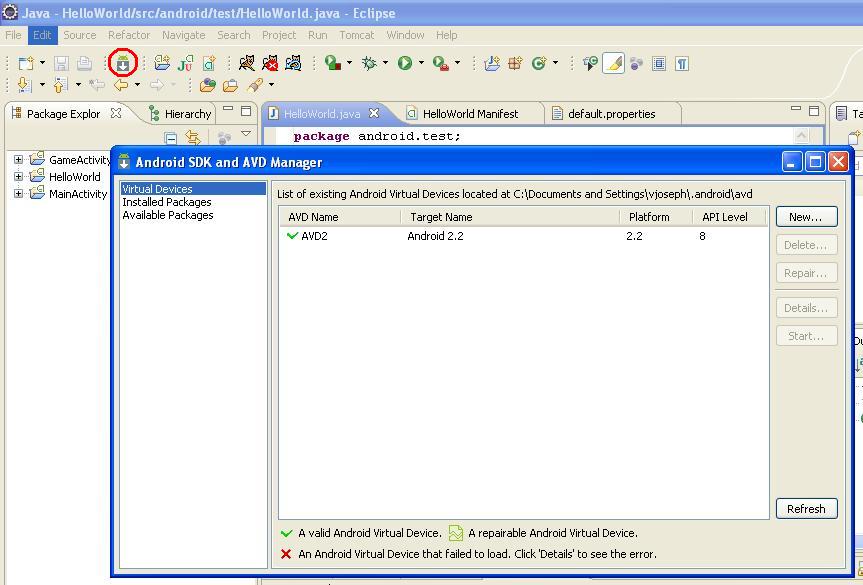


Click the android icon (with a white down arrow) from the Eclipse toolbar. I have show that icon in the below image. Then click the ‘New’ button and create a AVD. Finally it should look like the window in my image.

Android Hello World Project Creation

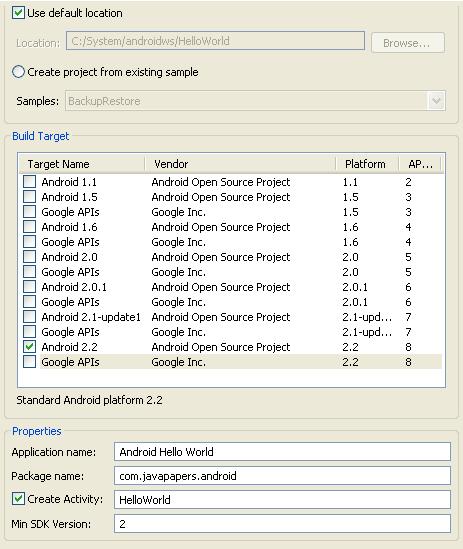
Right click in your Eclipse’s Package Explorer and New -> Android Project. Give a project name(Ex: AndroidHelloWorld), then select the Build Target. The build target should match the api version you have given at the time of AVD creation. Then fill the properties panel also.


Now the HelloWorld android project is ready to use. Open the HelloWorld.java from the project source. You should have a HelloWorld class source code similar to the below.

package com.javapapers.android;
 
import android.app.Activity;
import android.os.Bundle;
 
public class HelloWorld extends Activity {
    /** Called when the activity is first created. */
    @Override
    public void onCreate(Bundle savedInstanceState) {
        super.onCreate(savedInstanceState);
        setContentView(R.layout.main);
    }
}
 
Notice that you don’t have a main method. It is not needed. This HelloWorld is based on the Activity class and onCreate method will be called on initiation.
Now lets add our HelloWorld part to it. Edit the code and add the following snipped to it. Import TextView also.

TextView tv = new TextView(this);
tv.setText("Hello World!");
 
then set the contentView to the TextView you have created

setContentView(tv);
 
Now your Android Hello World should look like
 
package com.javapapers.android;
 
import android.app.Activity;
import android.os.Bundle;
import android.widget.TextView;
 
public class HelloWorld extends Activity {
    /** Called when the activity is first created. */
    @Override
    public void onCreate(Bundle savedInstanceState) {
        super.onCreate(savedInstanceState);
        TextView tv = new TextView(this);
        tv.setText("Hello World!");
        setContentView(R.layout.main);
    }
}

Run your Android Hello World App

Right click on the project ‘Run As -> Android Application’
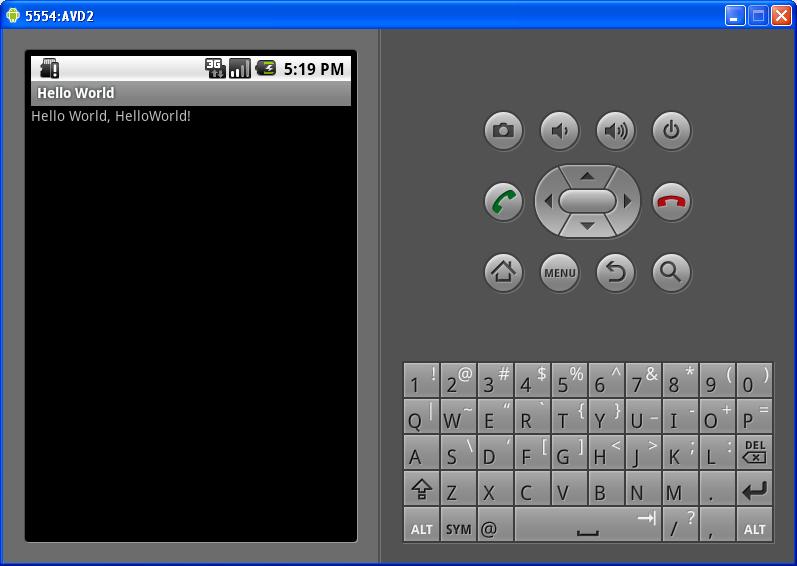
The AVD (emulator) will get started and it will take a while to respond. AVD needs that time to initialize itself. Wait for 2 to 3 minutes. Keep an eye on the console, it will give you some background process status information. Then you see “Hello World!”
.
Friday, October 25, 2013

Android Development Environment Setup

This article is a recap and will provide detailed step by step instructions to setup the Android development environment. If you have already got your setup done, this tutorial has got nothing new.

Steps for Environment Setup

  1. Install JDK
  2. Setup Eclipse IDE
  3. Install Android SDK (Manager)
  4. Install Android ADT Eclipse Plugin
  5. Install Android Packages
  6. Android Virtual Device Manager Setup

1. Install JDK

JRE alone is not sufficient, we should have the JDK setup done. Lets download and install latest version of JDK. No harm in having latest version of software.
 
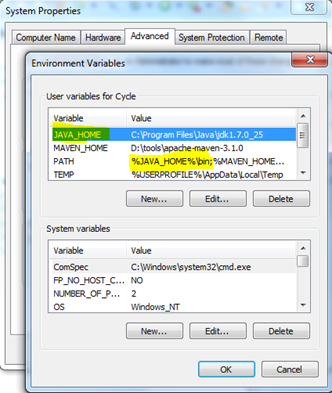
Java Platform, Standard Edition is what we should have. We need not have NetBeans as we are going to use Eclipse. After installation its better to set the Path variable.

JDK Setup

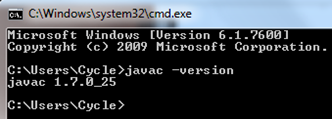
If the JDK setup is done successfully, we should get the following in command prompt,

jdk install

2. Setup Eclipse IDE

Eclipse comes in a zip file. All we need to do is, download the right package and just unzip it to a location in hard disk. It is better to download “Eclipse for Java EE Developers”. Even if you are not doing any EE development, download this version. Since it comes bundled with good set of plugins that might be handy in some situations.

Download Eclipse

Download the zip file bundle and unzip it.

3. Install Android SDK (Manager)

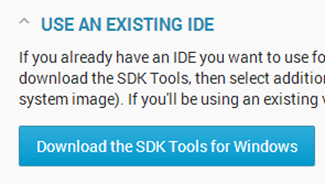
Android SDK comes bundled with Eclipse. We do not need that version, since we already have Eclipse. We need to download and install only the SDK version which is approximately 85 MB as of now.
http://developer.android.com/sdk/index.html
Adroid SDK Download
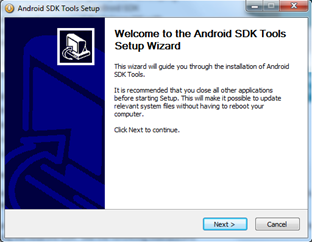
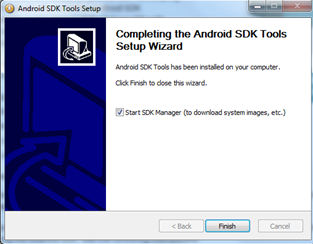
Download SDK, install – click next, next, … till Finish.

Android SDK Install
Android SDK Install 2

After you click ‘Finish’, this will start the SDK Manager and you will get a new window, it is to be used for packages installation. Keep that as it is, lets complete the ADT Eclipse plugin installation and come back to this.

4. Install Android ADT Eclipse Plugin

If you are in a company network, mostly you will be behind a proxy server / firewall. There might be restrictions on downloading and installing software. You need to check with your IT admin, raise request, follow up with them and get it done.


Most of the cases, IT guys will not understand the importance of these and they will talk like you are about to steal the world bank data. I know how much hell of a work it is. If you are at home, then these download and installation will be a cakewalk.
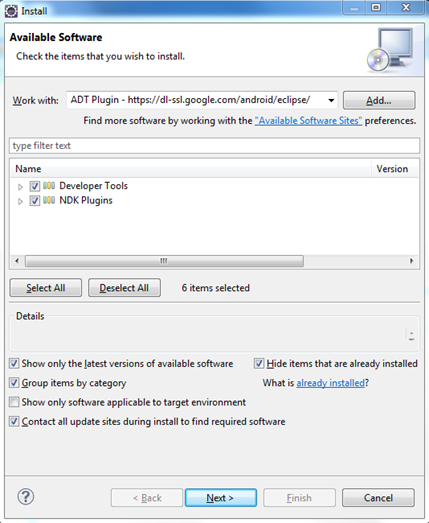
Install ADT Plugin

Click Next,

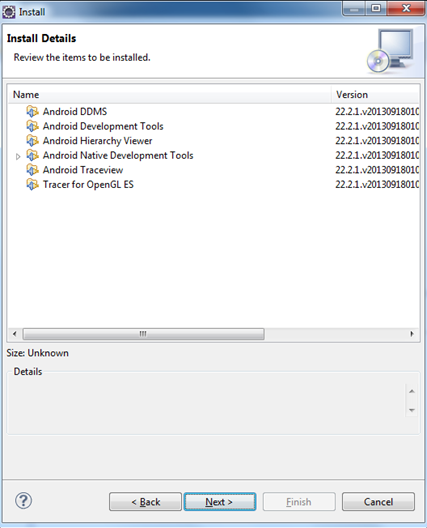
Install ADT Plugin 2

Click next and Finish.

This might take lots and lots of time, based on our internet connection speed. If you are in BSNL connection, go have a good sleep and come back later. During this install, the system firewall will ask for permission, give ok ok.
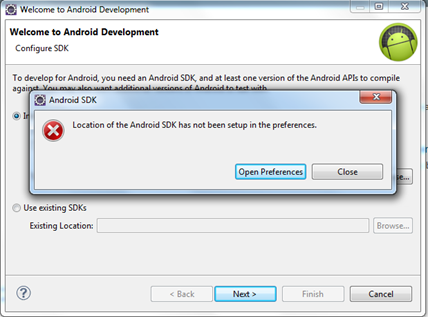
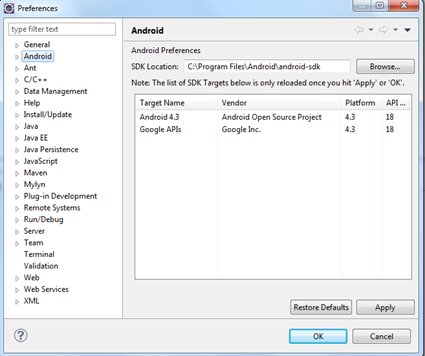
Restart Eclipse after its done and set the preferences,

Android SDK Preference

Android SDK Preference 1

5. Install Android Packages

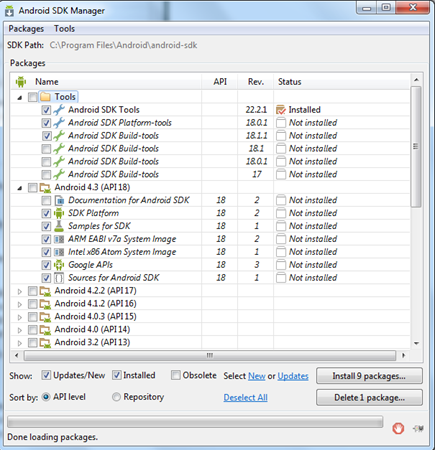
After installation of Android SDK Manager, we will “Start SDK Manager” and get the following screen,

Android Package Installation

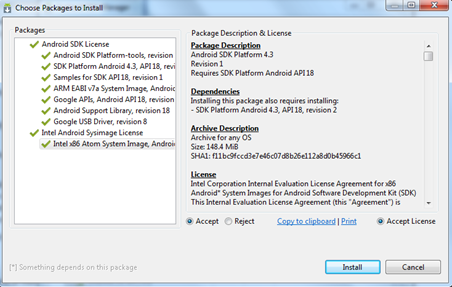
In the above screen, I have selected certain check-boxes (make sure you have minimum selected all those). Presently I am installing packages for development for Android version 4.3 (API 18). If you are going to develop for older version of Androids, then select the respective versions. If you are not sure which version to choose, just select the latest version as I have done now. On click of install, we will get below, ensure all are in green tick mark, if not select that item and ‘Accept’ license.

Android Package Installation 2

Now click ‘Install’, this is also going to take lot of time.

6. Android Virtual Device Manager Setup

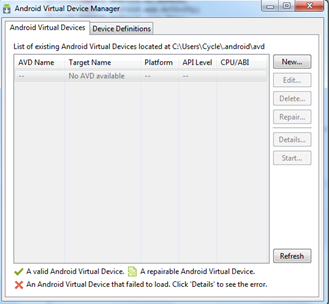
This step is required to test the apps we develop within Eclipse using the Android virtual device. After Android ADT plugin installation in Eclipse, we will get couple new icons in the Eclipse toolbar. In the top left we can see those. One icon is for ‘Android Virtual Device Manager’, on click we will get the following screen,

Android Virtual Device Manager Setup

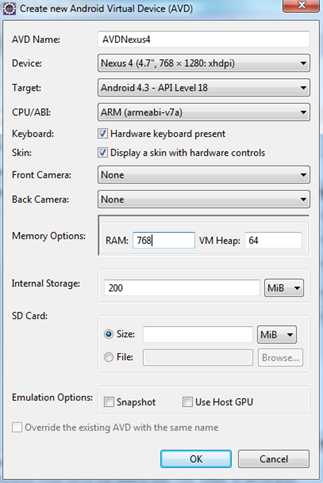
Click ‘New’, give the following configuration and Ok,

AVD Configuration

Now we are ready to create our first Android mobile application. World is going Android way, so it is good to learn Android development.